
STEP 1
Download Save4k
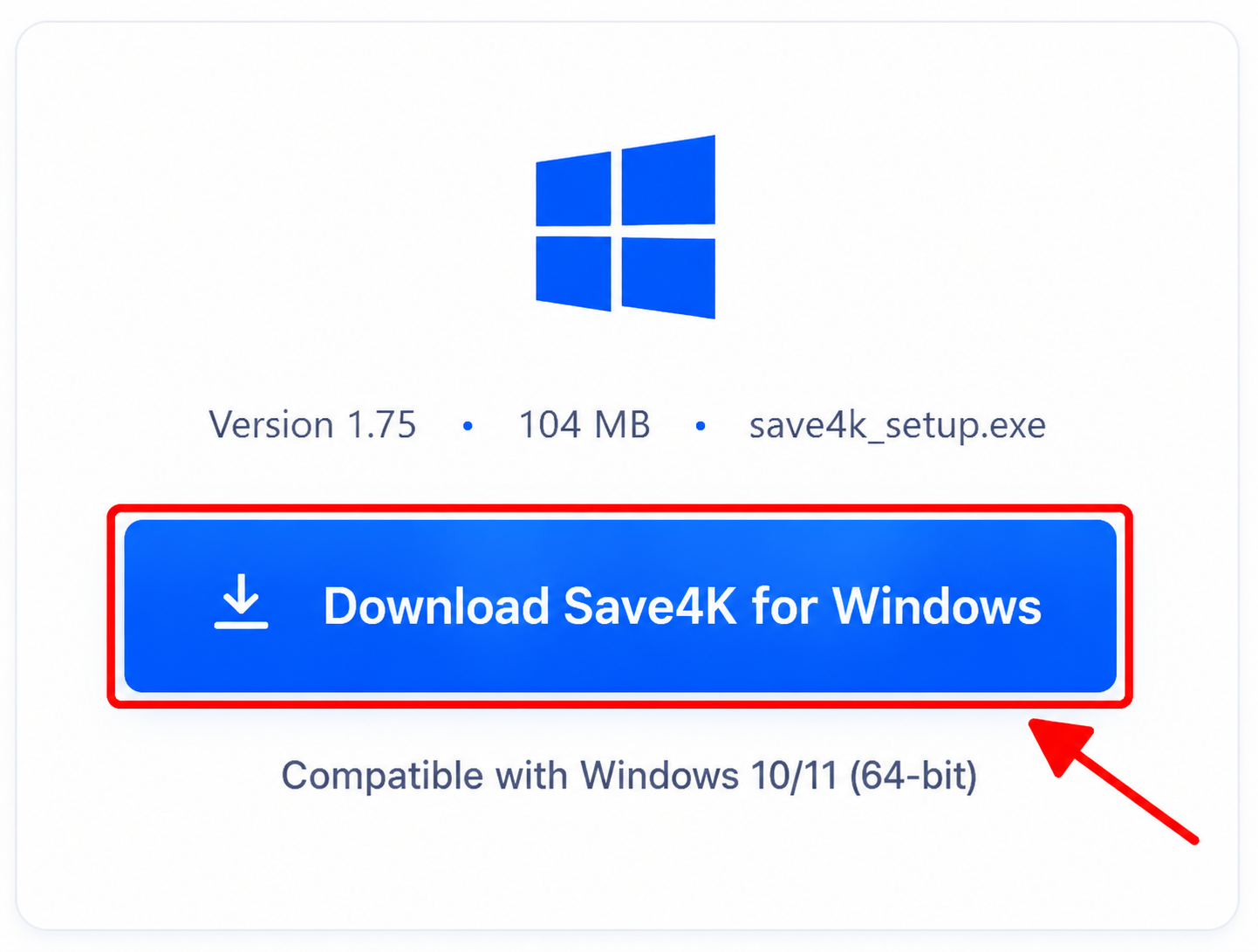
Click the Windows download button to save the installer.
WINDOWS
Download the official Save4k installer for your device, follow the setup steps below, and start converting videos safely in just a few minutes.
STEP-BY-STEP INSTALLATION
Each step takes only a few seconds to get you started.
STEP 1
Click the Windows download button to save the installer.
STEP 2
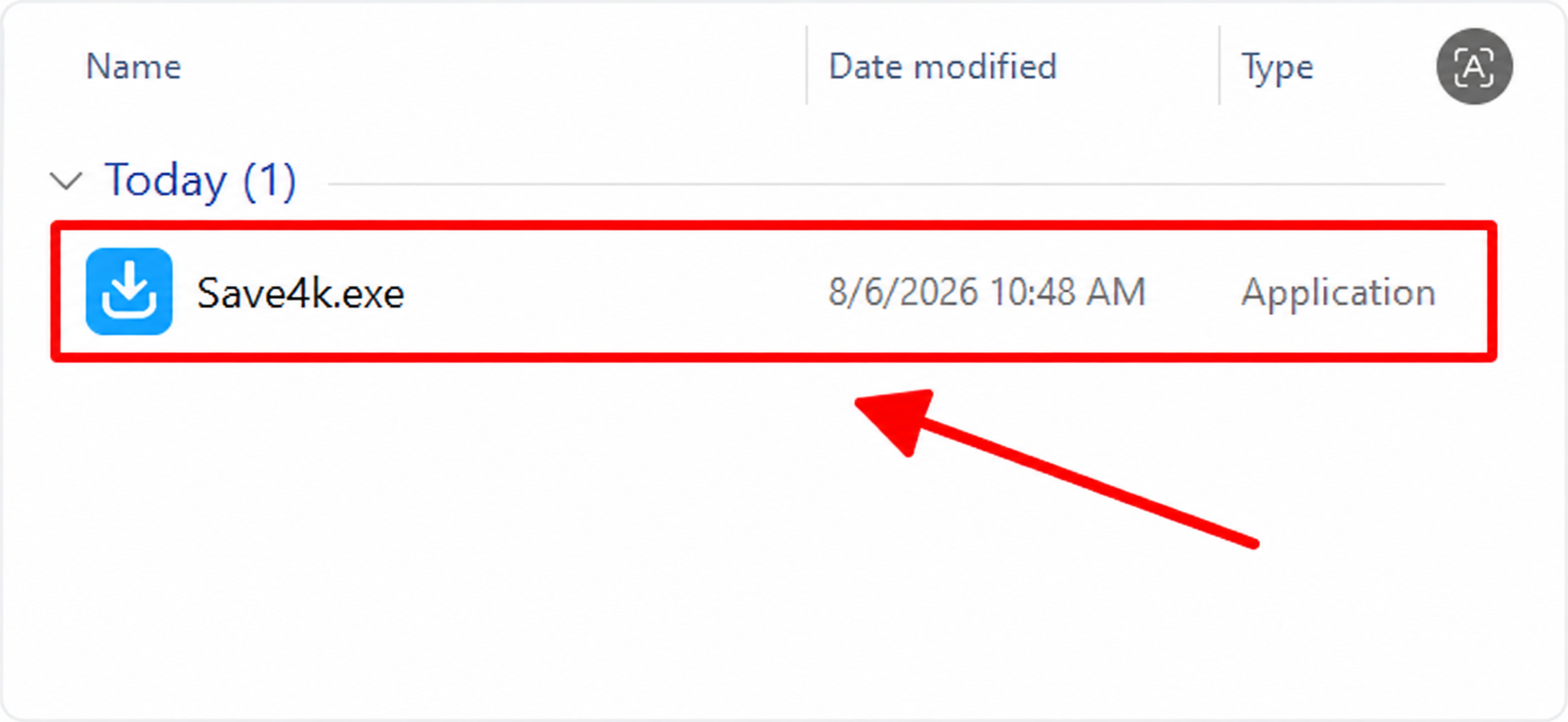
Open Save4k.exe from your Downloads folder or browser.
STEP 3
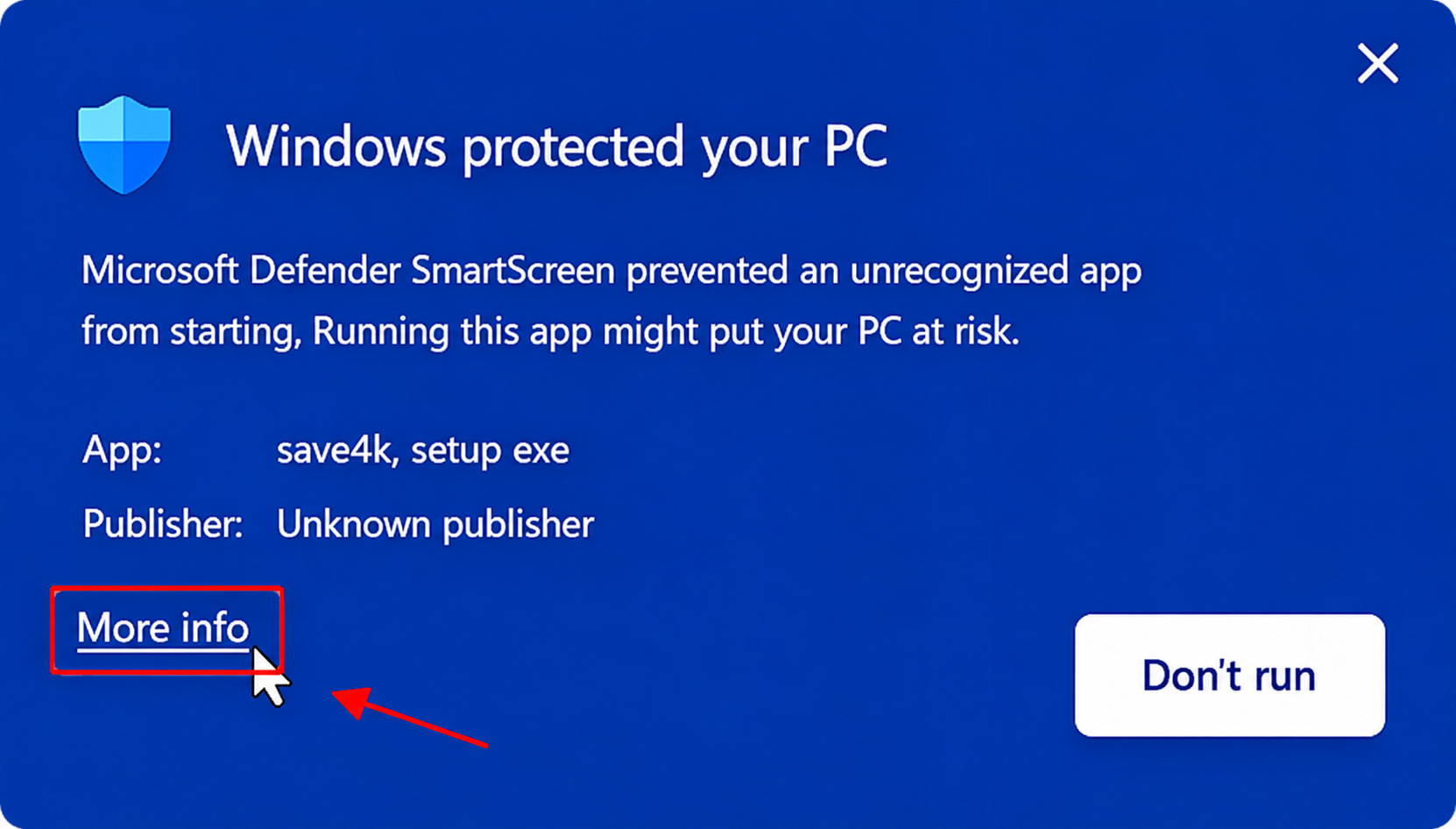
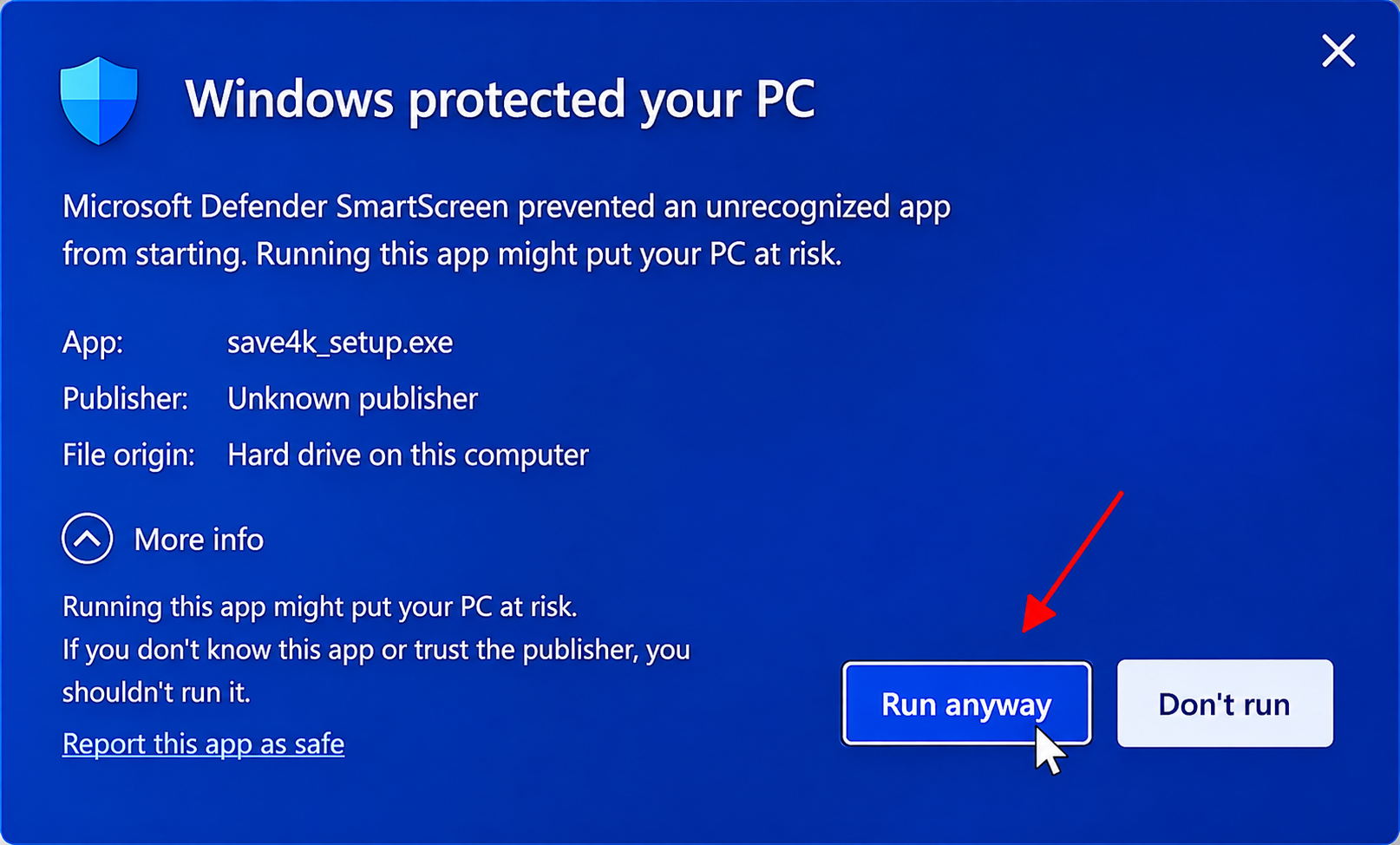
Windows may show a security warning. Check the app details and continue.
STEP 4
Read the license terms and choose I Agree to continue.
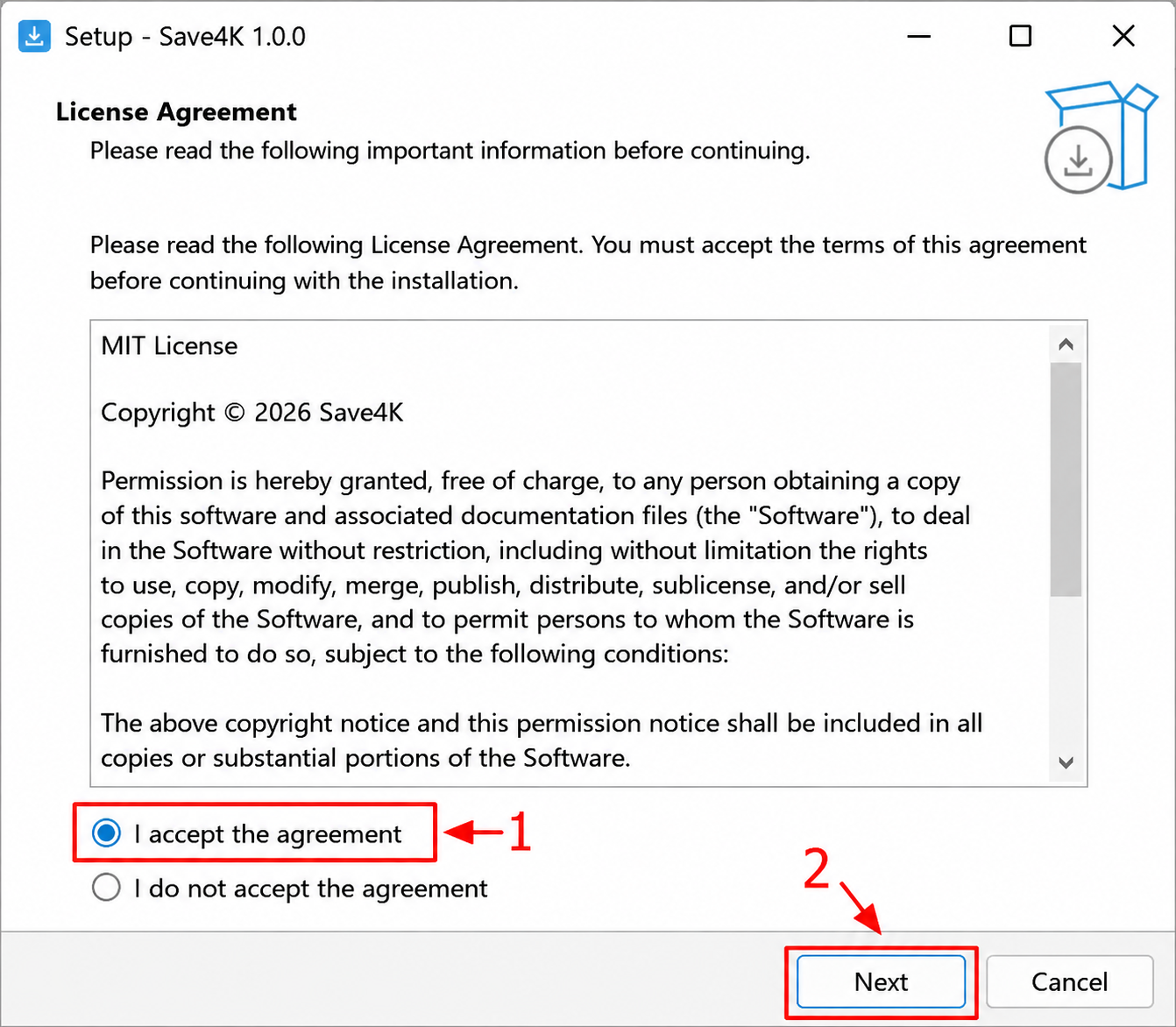
STEP 5
Choose where to install the app or keep the default location, then click Next.
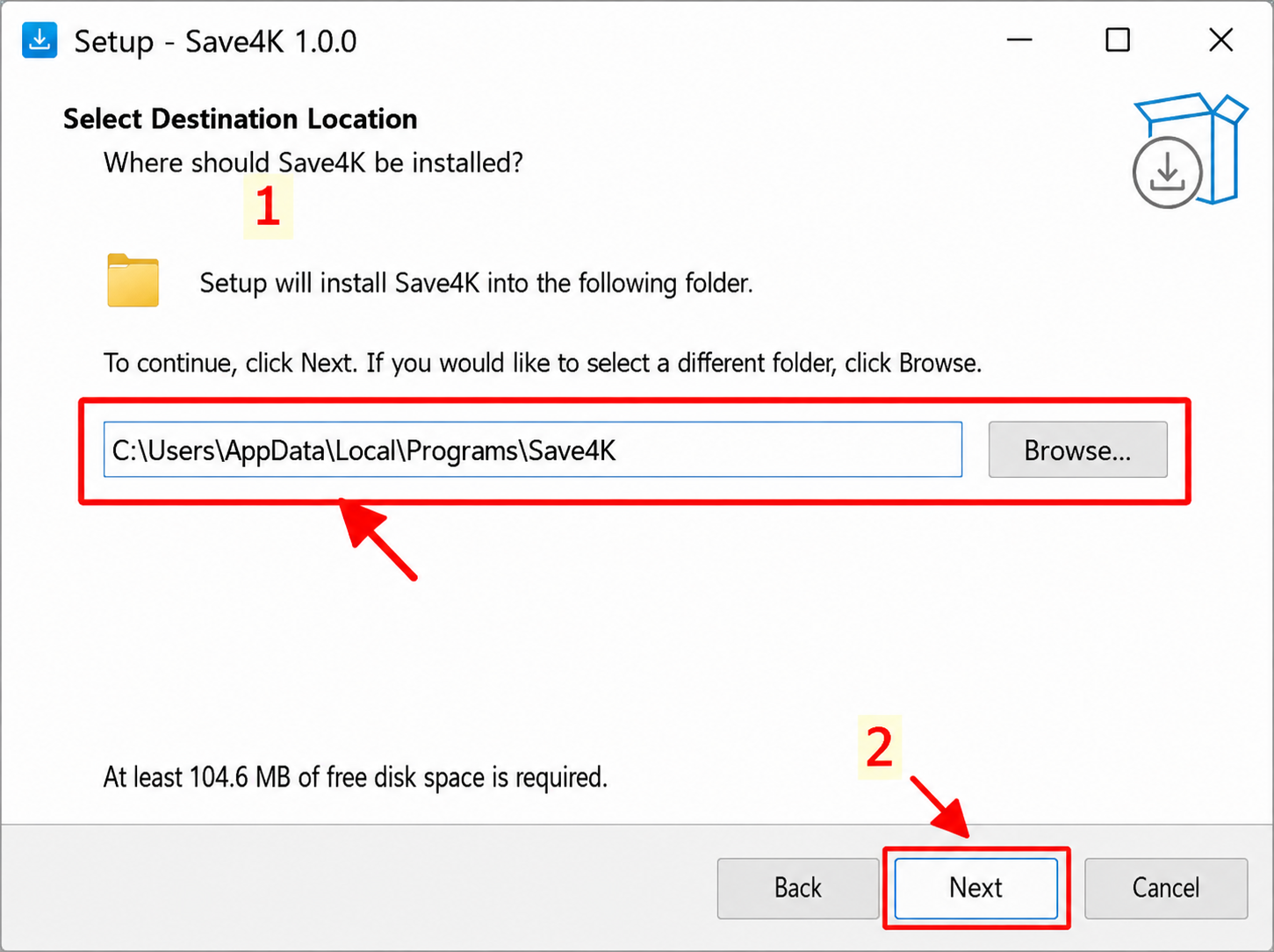
STEP 6
Choose whether to create a shortcut or use other options.
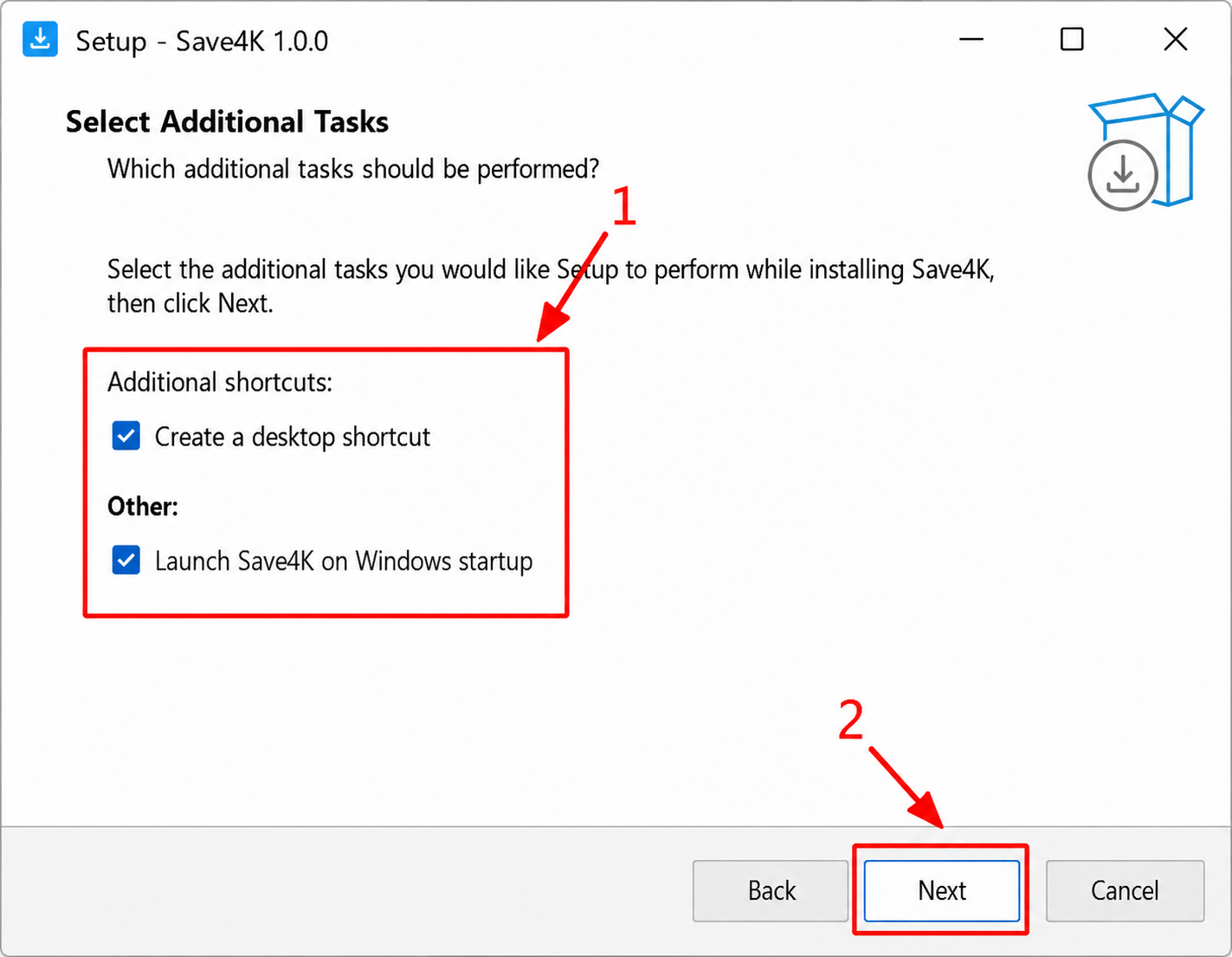
STEP 7
Review your choices and click Install to begin.
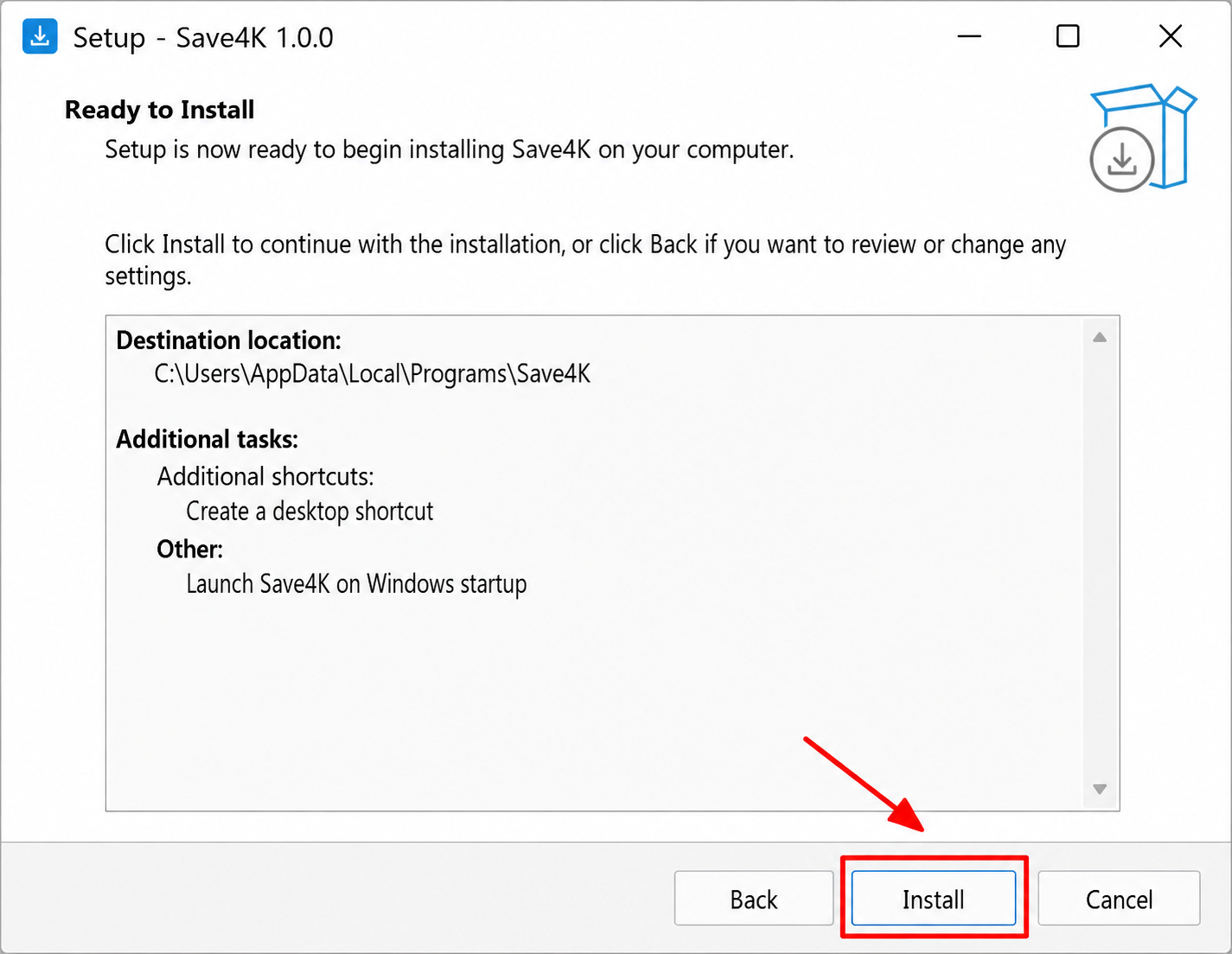
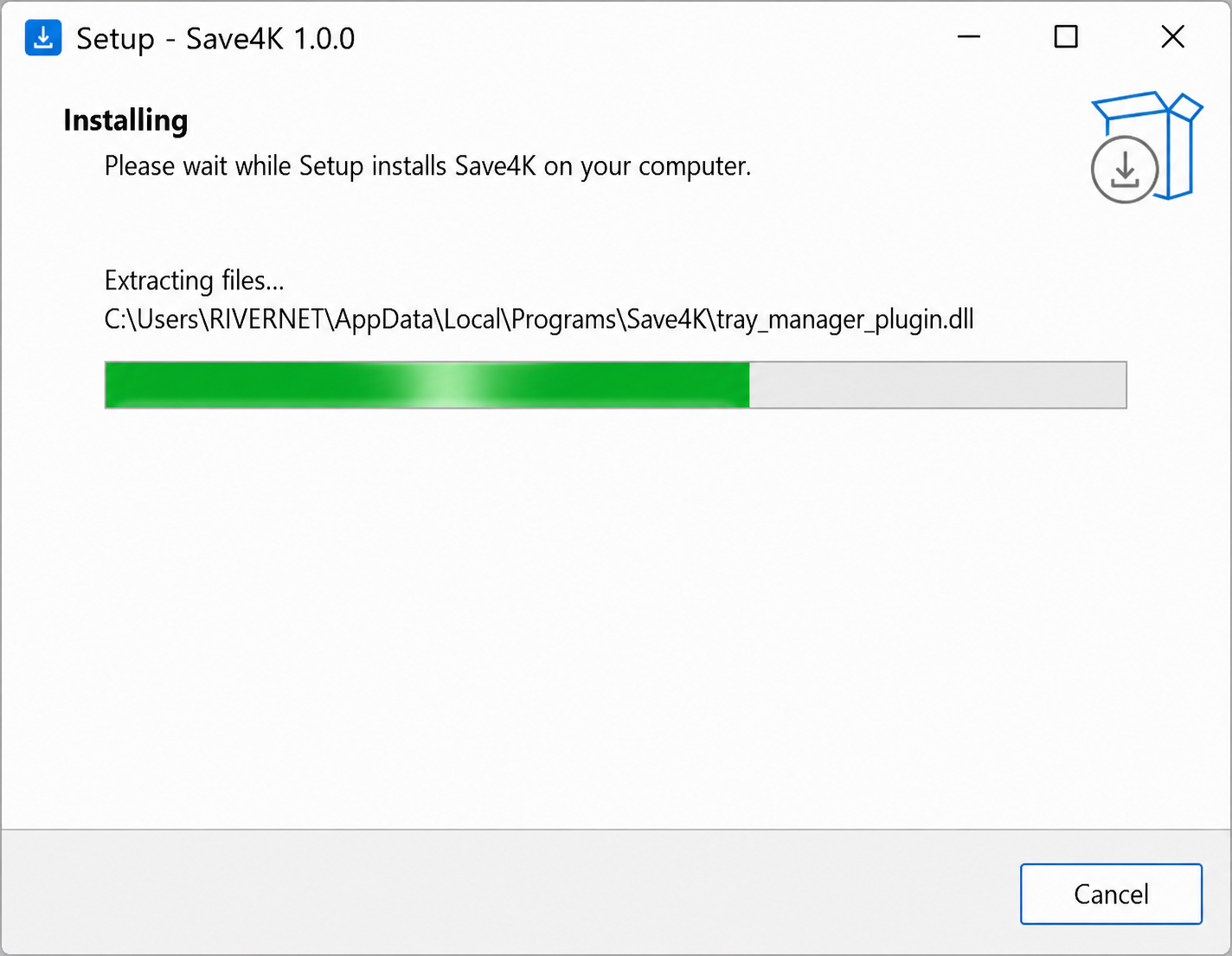
STEP 8
Wait a moment while Save4k is installed on your computer.
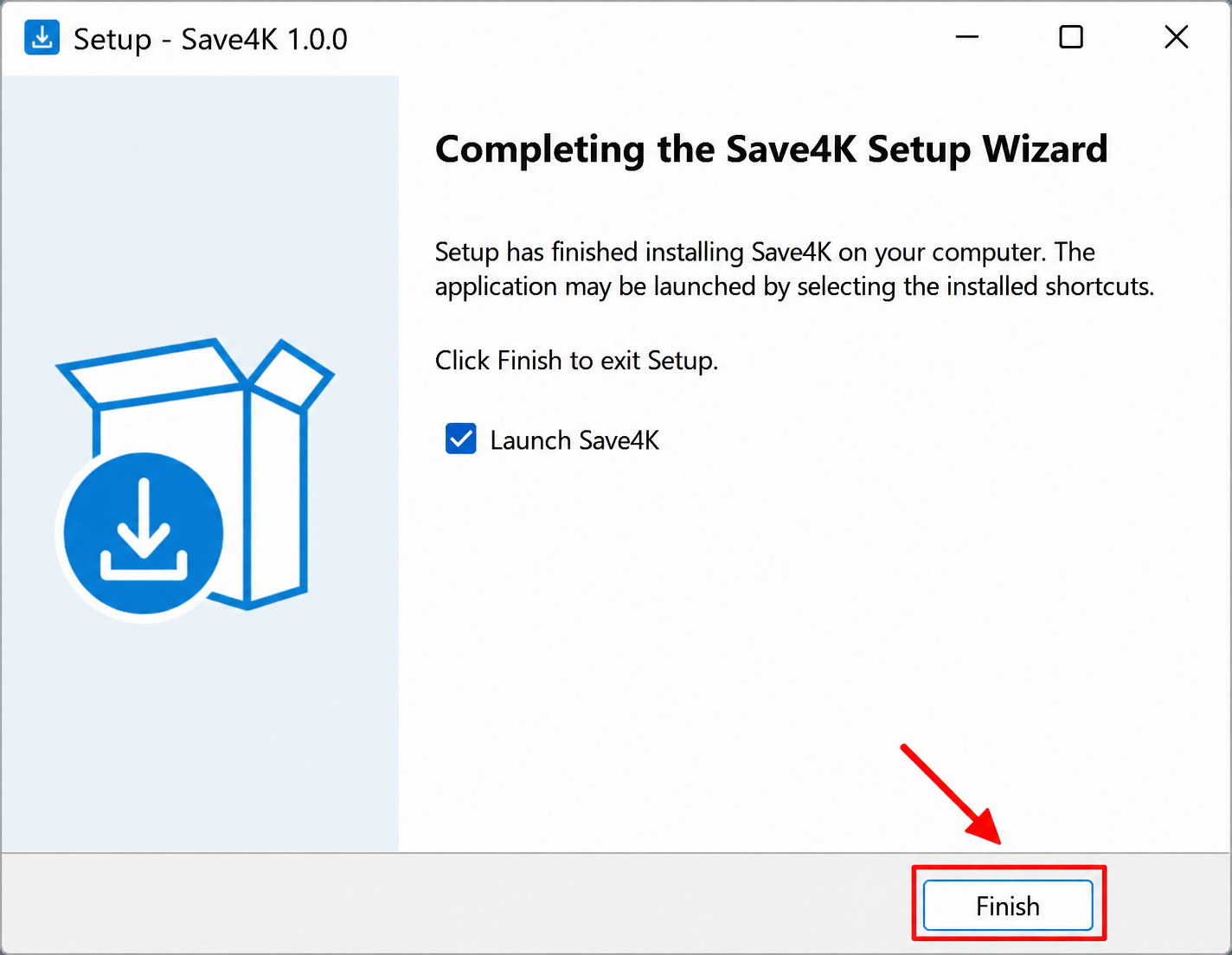
STEP 9
Click Finish to complete the installation and open Save4k.
Yes. You can download and use Save4k with the version that fits your device.
Contact the support team if you have trouble installing the app.
Windows 10/11 64-bit, 4 GB RAM or more, and about 200 MB of free space.
Save4k is designed to be safe, lightweight, and free from malicious software.
Keep the default folder or choose another location during installation.
This download supports 64-bit editions of Windows 10 and Windows 11.
Check your internet connection and free space, then run the installer again as administrator.
SAVE4K APP
Choose your operating system and download the Save4k app.
For Windows 10/11 (64-bit)
For macOS 10.13 and above
For Android 7.0 and above